Log the day. File it once.
A desktop timesheet tracker that validates your hours and files them into Msync and Park for you.
vv4.23.0 · free once your admin approves you · auto-updates built in
Windows · macOS · auto-updates · free once approved
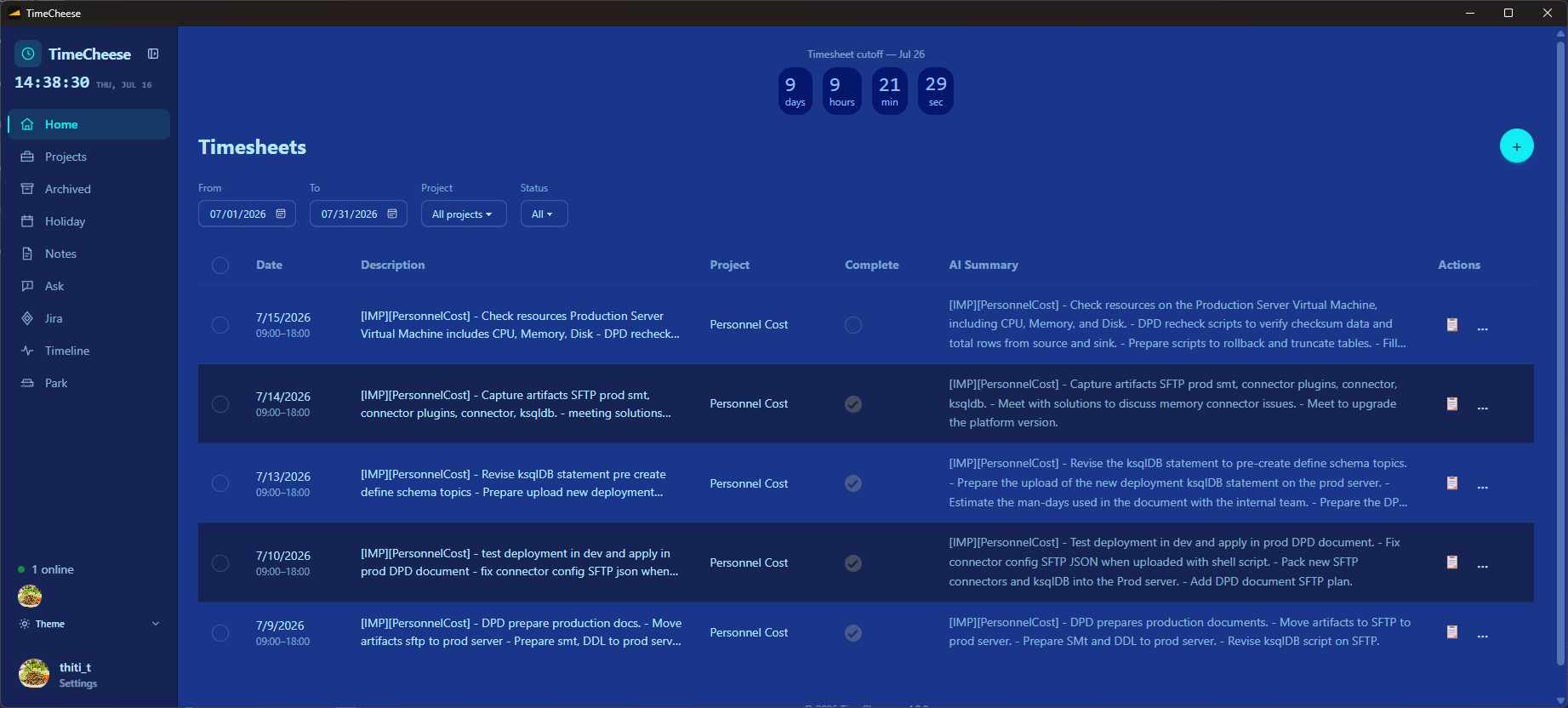
1.0 LOG
Type it once.
Log entries per project with start and end times. “Same as previous” refills the description from your last entry, and an on-device grammar check flags spelling and grammar problems as you type — no key, no network. It runs again before save, so the stored description is fixed too.
Or don't type at all. The 🎤 button records Thai speech straight into the description — Whisper transcribes it on the app's own Cloudflare Worker, in the desktop webview on every platform. Then one click on → EN turns the Thai, dictated or typed, into concise English “- ” bullets — tag headers like [IMP][PersonelCost] are kept exactly as you wrote them, and if the conversion fails your text is left untouched.
2.0 VALIDATE
The day has a shape.
12:00–13:00 lunch is hatched and dimmed — it’s never counted toward the 8-hour cap.
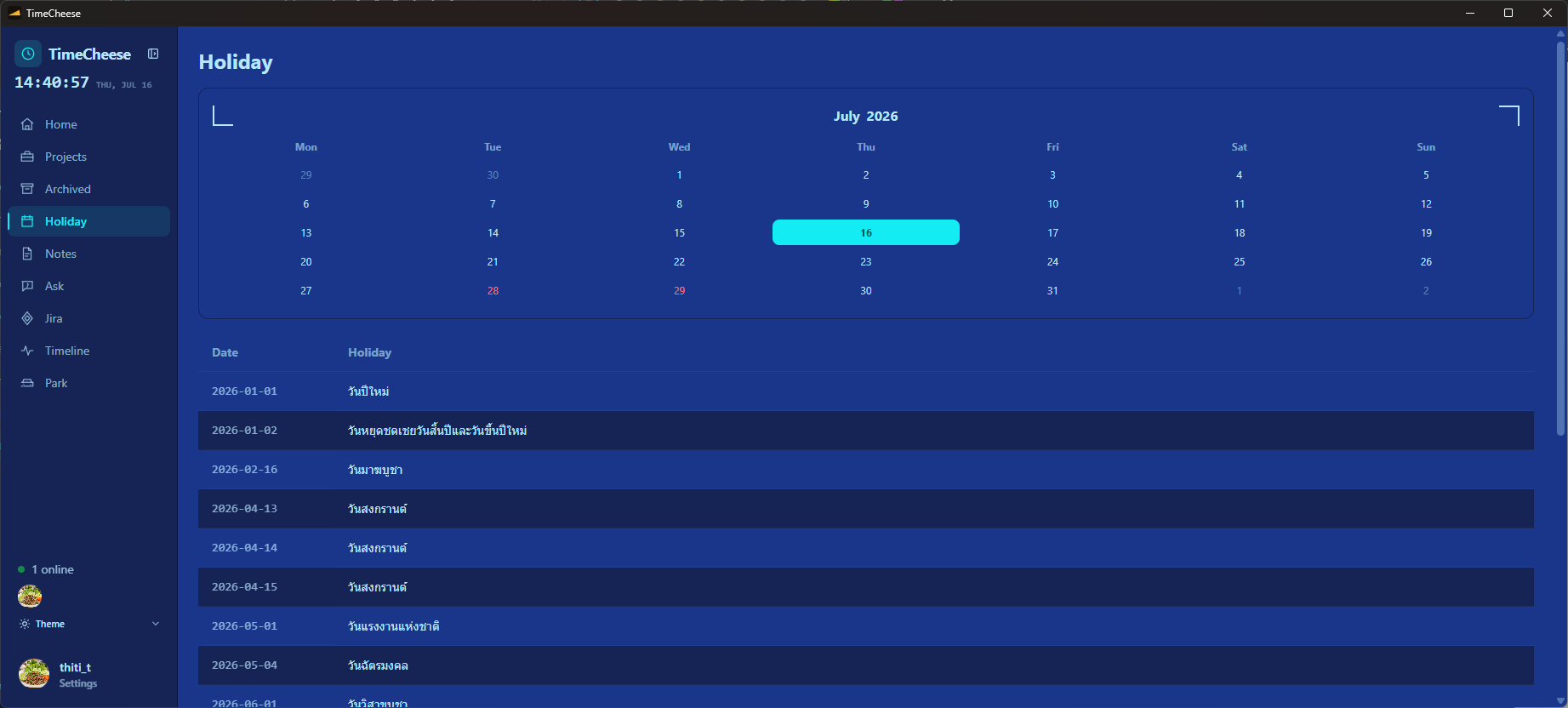
A warning banner lists past working days in the current cutoff period with no entry — weekends and company holidays excluded.
3.0 FILE
Filed into Msync and Park.
Opens the company Msync site in an SSO-preserving window and fills your timesheet rows into the embedded Appsmith form — no retyping, no lost session.
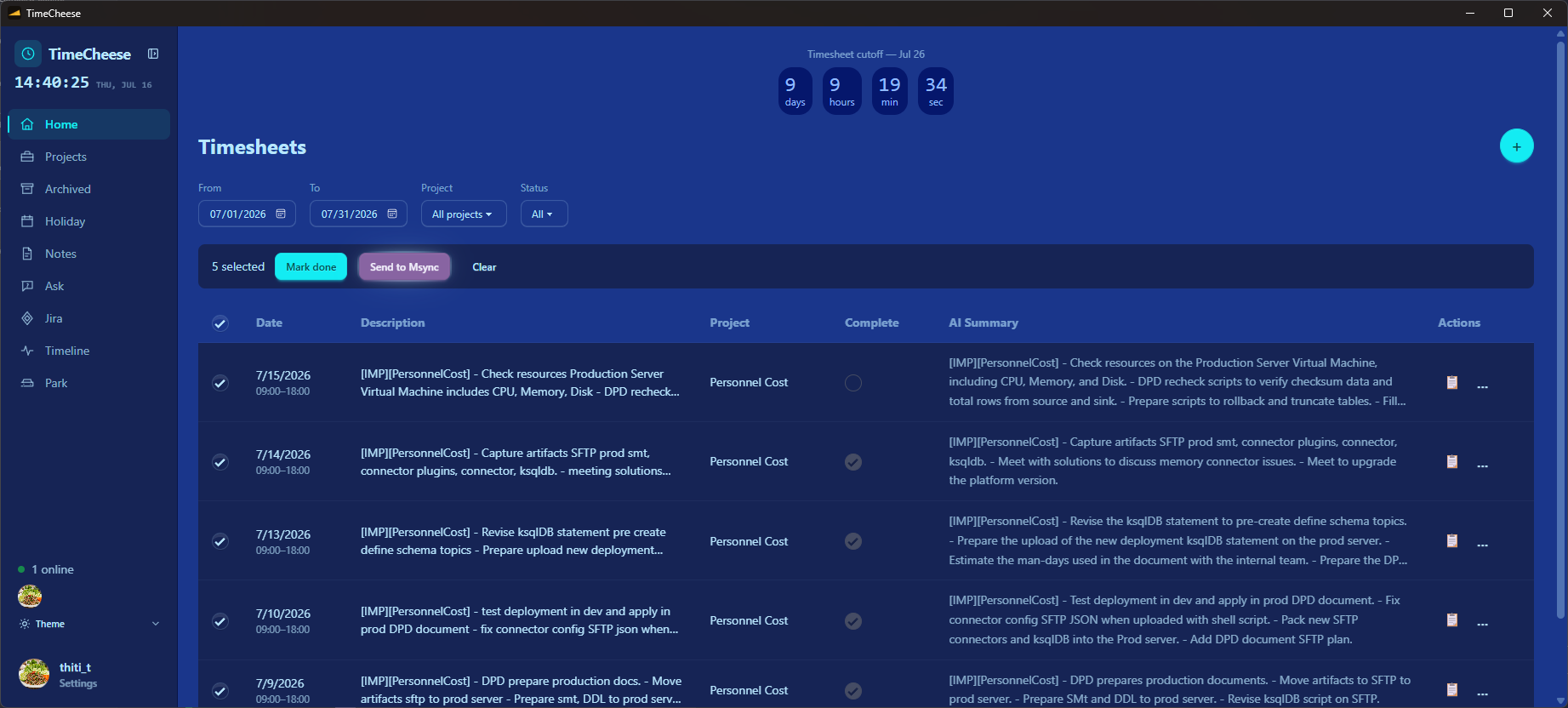
Rows on the non-project code (MFE260055) file as “Non Project”, with the task picked by project name. Mixed batches work.
vehicles managed in the Park tab
4.0 RECALL
Ask your own archive.
Browse archived entries with search, plus monthly AI digests that summarize the month for you.
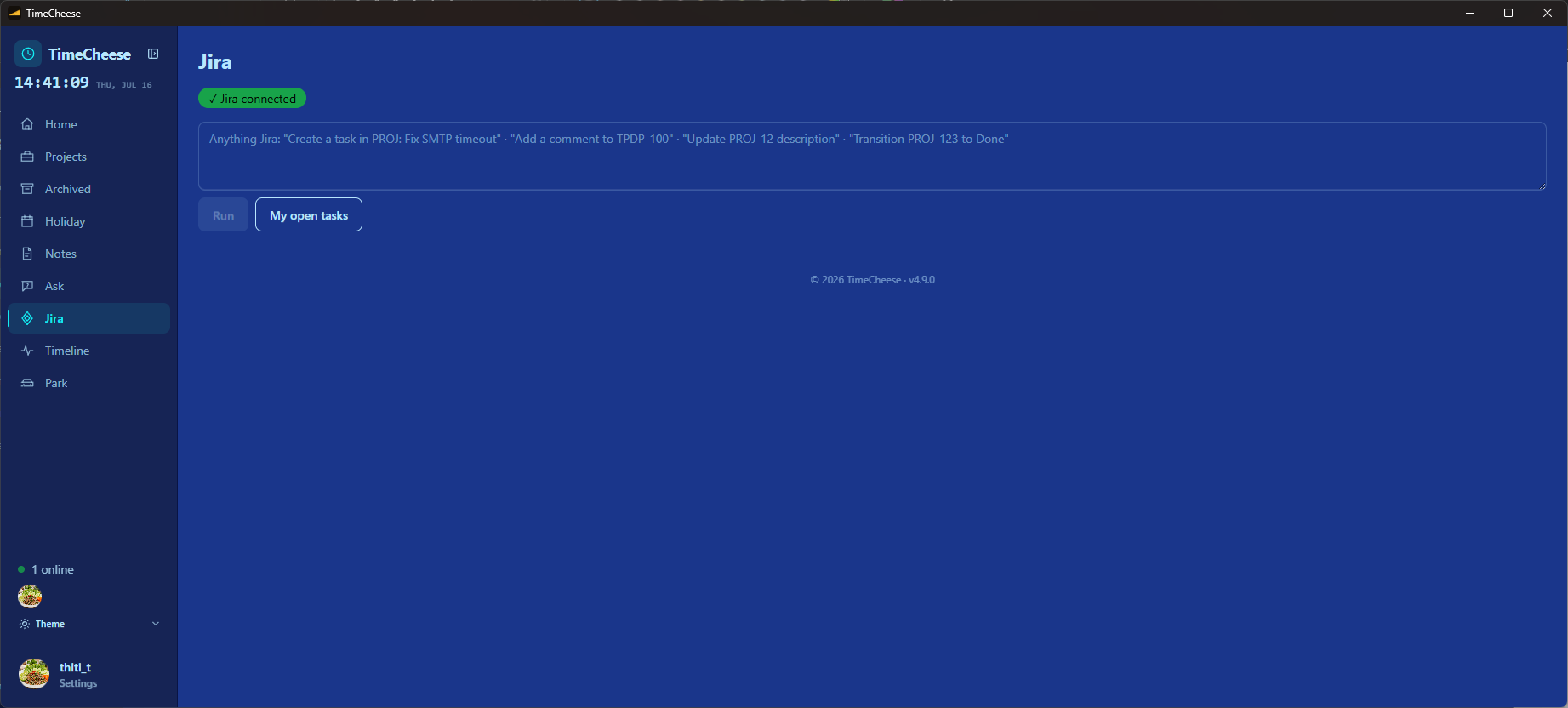
The Jira Assistant transitions Jira issues — “mark done + close Jira” straight from a timesheet row. It runs on whichever CLI you already have, Claude Code or OpenAI Codex, picked in Settings or auto-detected. Choose the model per CLI, and see what each run used: model, tokens, cost, and when your rate-limit window resets.
Ask questions about your own past work and get an answer with the entries it came from. Date questions like “what did I work on last week?” read that week directly; topical ones search by meaning.
Everything in the box.
All of it free once your admin approves you. The two Pro rows aren’t a paid tier — the Jira Assistant rides an AI CLI you already have (Claude Code or OpenAI Codex) plus the Atlassian MCP server.
| Feature | Free | Pro |
|---|---|---|
| Timesheet trackingLog entries per project with start/end times, validated against the 09:00–18:00 working window, max 8 worked hours a day (lunch 12:00–13:00 excluded). “Same as previous” refills the description from your last entry. | ✓ | ✓ |
| Grammar checkSpelling and grammar problems in a timesheet description show up as a clickable list while you type; click one to apply it. Runs on-device with no key, no config and no network, and runs before save so the stored description is fixed too. | ✓ | ✓ |
| Thai voice dictationA 🎤 button in the entry form records from the microphone and Whisper turns the speech into text in the description box. Works in the desktop webview on every platform — a built-in WAV recorder steps in where the webview has no native audio recorder. | ✓ | ✓ |
| Thai → English conversionThe → EN button converts the description — dictated or typed — into concise English "- " bullets. Tag headers like [IMP][PersonelCost] are kept exactly as written; if the conversion fails the text is left untouched. | ✓ | ✓ |
| ProjectsManage active projects and assign entries. | ✓ | ✓ |
| Archive & AI digestsBrowse archived entries with search; monthly AI summaries. | ✓ | ✓ |
| Holiday calendarInteractive company holiday calendar. | ✓ | ✓ |
| Msync auto-fillFills your rows into the company Msync/Appsmith site through an SSO-preserving window. | ✓ | ✓ |
| Non-project Msync auto-fillRows on the non-project code (MFE260055) file as “Non Project”, with the task picked by project name. Mixed batches work. | ✓ | ✓ |
| Park auto-fillCarpark registration autofill with vehicle management. | ✓ | ✓ |
| Missing-day remindersA warning banner lists past working days in the current cutoff period with no entry — weekends and company holidays excluded. | ✓ | ✓ |
| Auto-updateNew versions install themselves. | ✓ | ✓ |
| Jira AssistantTransition Jira issues, “mark done + close Jira” straight from a timesheet row. Runs on whichever CLI you already have — Claude Code or OpenAI Codex — picked in Settings, or auto-detected. Choose the model per CLI, and see what each run used: model, tokens, cost and when your rate-limit window resets. | — | ✓ |
| AskAsk questions about your own past work and get an answer with the entries it came from. Date questions like “what did I work on last week?” read that week directly; topical ones search by meaning. | — | ✓ |
The Jira Assistant requires a locally installed Claude Code or OpenAI Codex CLI (your own subscription) plus the Atlassian MCP server.
Download.
Request access from the sign-in screen — your admin approves you, then you're in.Getting access →
Getting started.
Install
Run the .msi on Windows or drag to Applications on macOS.
Request access
Click "New here?", verify your email, set a password, then wait for admin approval.
Log your first entry
Pick a project, date, and time — TimeCheese validates it for you.